
Quick Start
The KNX Matter Server is installed in your electrical cabinet next to your KNX actuators. It has one function, the Matter Bridge, which you configure in the Web Interface.
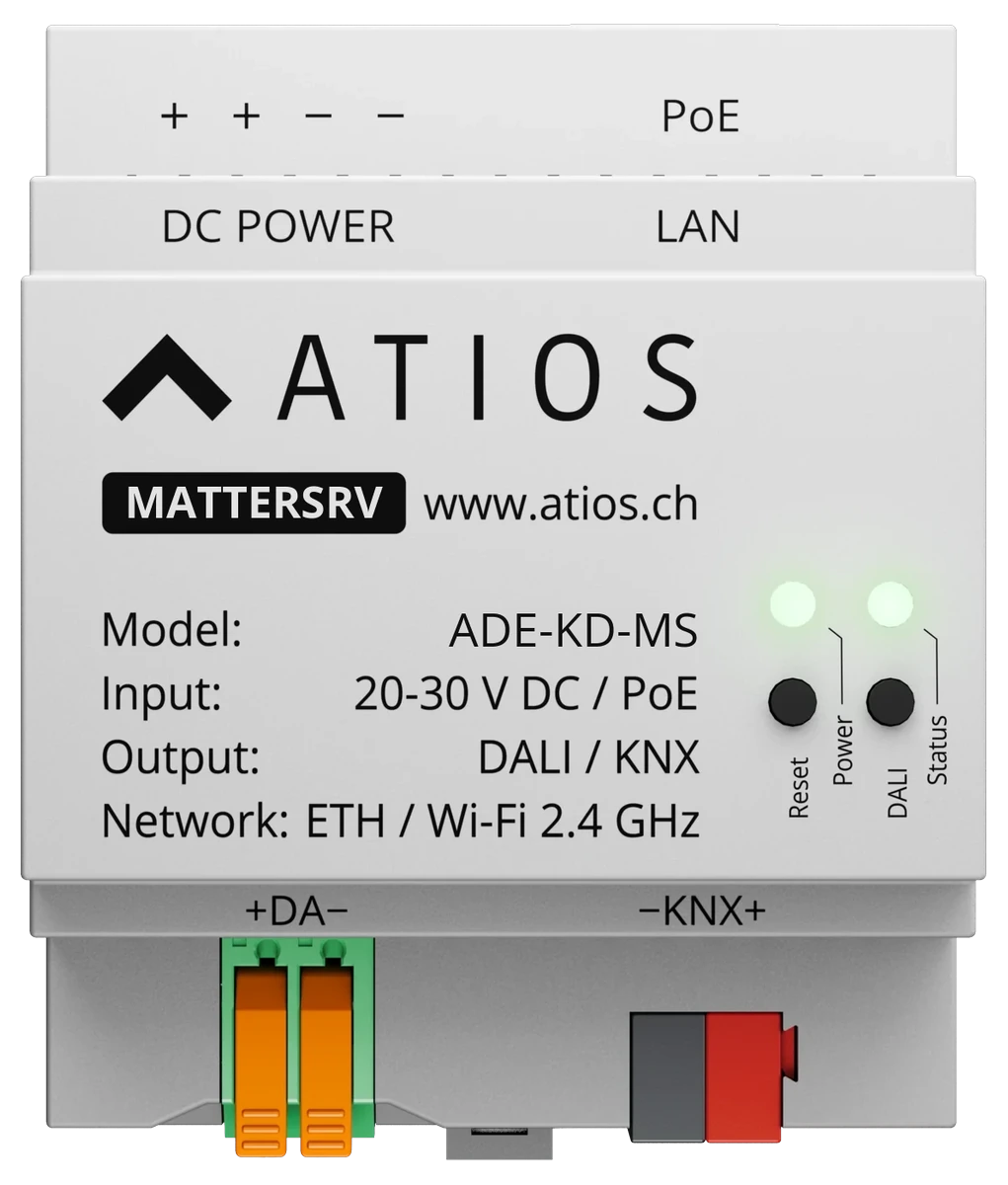
Key features
- Matter Bridge for KNX devices
- Ethernet (PoE) or WiFi connectivity
Connecting to your Network
Before setting up the Matter Bridge, connect the device to your network over Ethernet. Use PoE if you want to power it over the same cable. Go to Network Settings for more details.
Powering the Device
Power the KNX Matter Server via Power over Ethernet (PoE 802.3af) on the LAN port, or wire an external 20-30 V DC supply to the DC POWER terminals. Use only one source at a time. For full wiring details, go to Mounting & Wiring.
Accessing the Web Interface
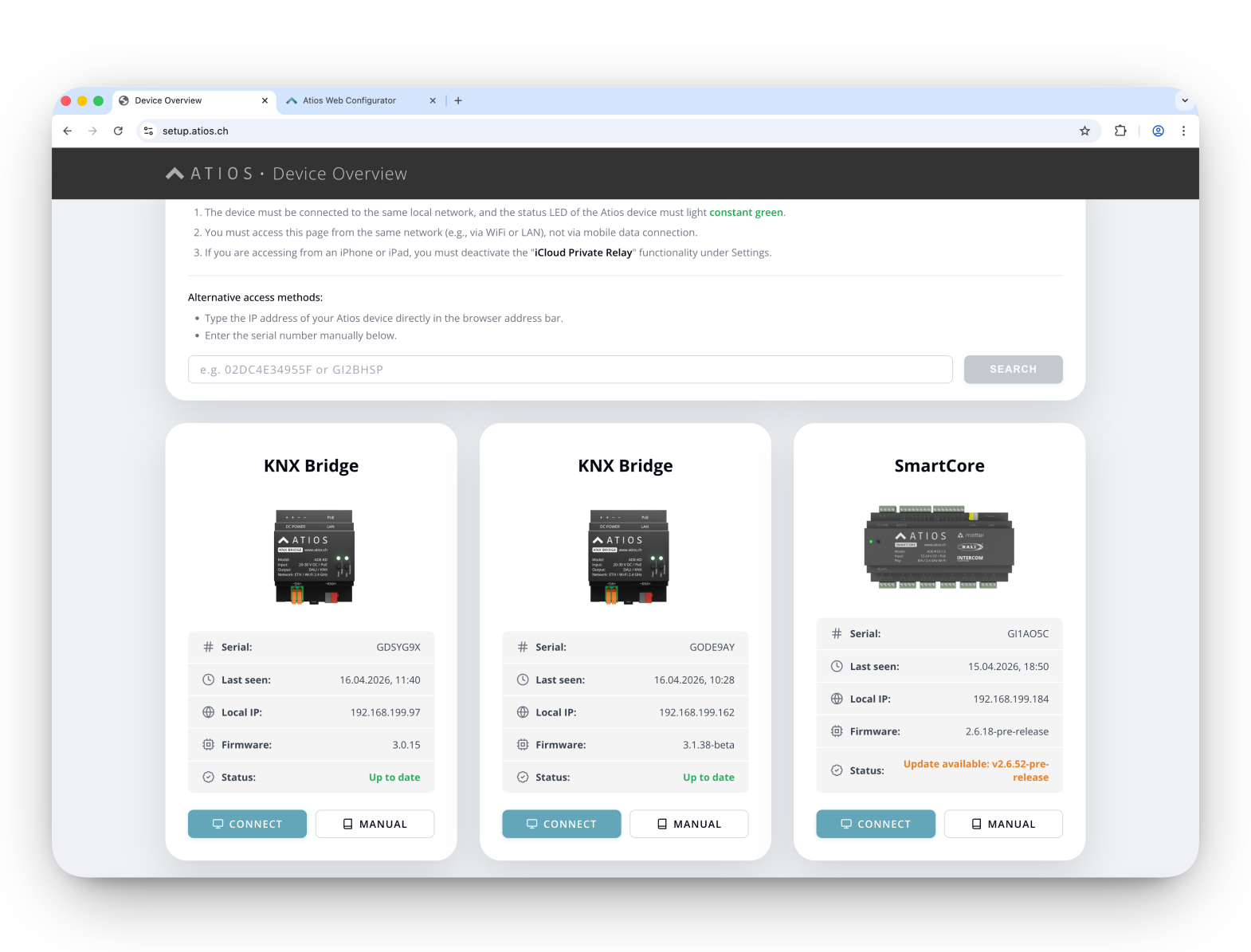
Go to setup.atios.ch, choose your KNX Matter Server, and press Connect.
Configuring your Setup
Matter Bridge
In the Accessory Manager, you configure your lights, blinds, valves, and other devices by assigning KNX group addresses to each. The Matter Server then makes those devices available in the app.
Add Devices: Add your lights, blinds, valves, and other devices in the Accessory Manager. For each device, select the type and enter the KNX group addresses.
Pairing: Scan the QR code or enter the pairing code in your smart home app to pair the Matter Server. See the Matter Pairing Guide for platform-specific instructions.