
Quick Start
KNX Remote Access is installed in your electrical cabinet next to your KNX actuators. It lets you program and monitor your KNX installation over the internet. You set up KNX Secure and enable the Cloud Interface in the Web Interface, then connect from ETS.
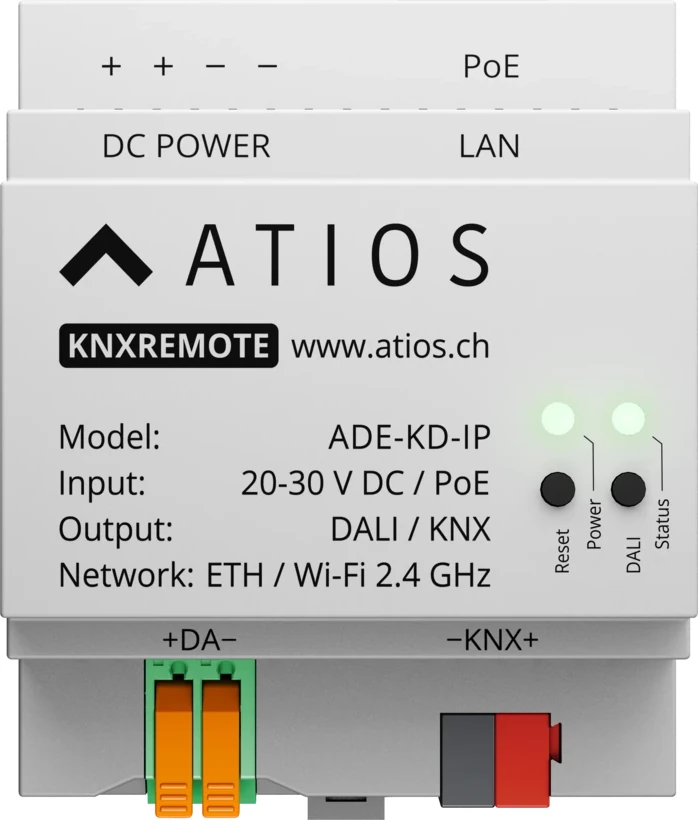
Key features
- Remote ETS access to your KNX installation over the internet
- Requires KNX Secure (IP Secure and Data Secure)
- Power over Ethernet (PoE 802.3af) or 20-30 V DC
What you need
- Atios KNX Remote Access
- ETS 6.3 or higher for the Cloud Interface
- A network connection to reach the Web Interface
1. Mount and wire the device
Mount the device on the DIN rail in your electrical cabinet. Connect the KNX TP bus to the KNX terminal (observe polarity). For full wiring details, go to Installation.
2. Power the device
Power the device over PoE through the LAN port, or with a 20-30 V DC supply on the DC POWER terminals. Use only one power source. The Power LED turns solid green once the device has an IP address.
3. Connect to your network
Connect the device to your network over Ethernet (or PoE). It receives an IP address automatically via DHCP. Open the Web Interface at setup.atios.ch and select your device.
4. Set up KNX Secure
KNX Secure is a prerequisite for Remote Access. In KNX Settings, enable the KNX IP Interface, then set up IP Secure and Data Secure. For details, go to KNX Secure.
5. Enable the Cloud Interface
In KNX Settings, enable the Cloud Interface toggle. This toggle is only available once IP Interface, IP Secure, and Data Secure are all enabled. For details, go to Enabling Remote Access.
6. Configure access
Choose who can connect remotely: enable Access with ToolKey so anyone with the ETS project file can connect, or disable it and issue individual Access Tokens instead. For details, go to Configuring Access.
Your KNX installation is now reachable remotely from ETS.