
Quick Start
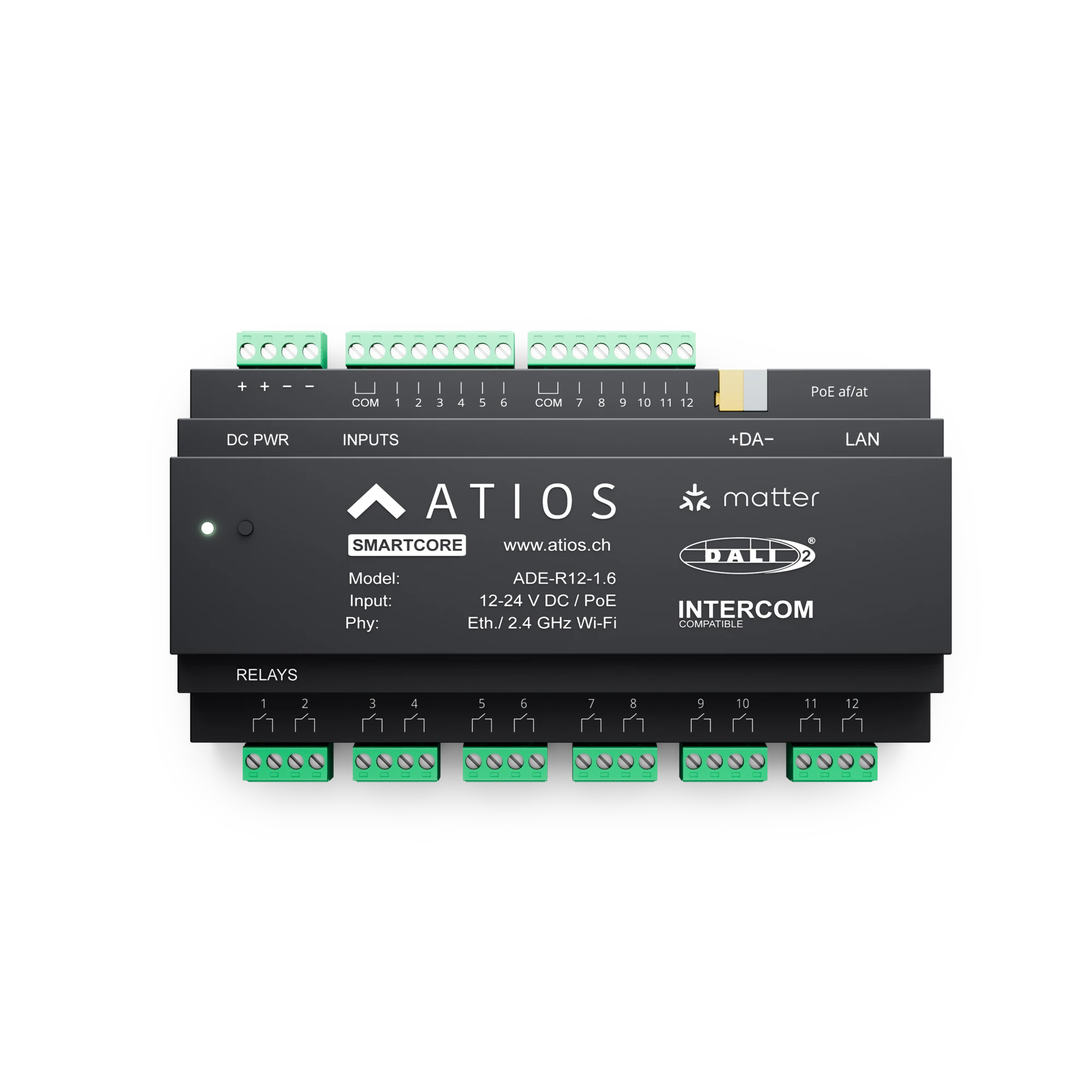
The SmartCore is installed in your electrical cabinet. It exposes wired devices (keypads, switches, lights, blinds) to Matter and can act as a DALI controller for lighting. Both functions are independent. You configure them in the Web Interface, and the configuration is stored on the device.
Key features
- 12 digital inputs and 12 relay outputs (16 A, bistable)
- DALI-2 controller for up to 64 devices and 16 groups
- DALI Configurator for addressing and grouping lights
- Ethernet (PoE) or WiFi connectivity
- Matter-compatible: Apple Home, Google Home, Alexa, SmartThings, Home Assistant
Connecting to your Network
Before setting up either function, configure your network connection in Network Settings. Set up Ethernet or WiFi and assign a static IP if needed.
Powering the Device
Power the SmartCore via Power over Ethernet (PoE 802.3af) on the LAN port, or wire an external 20-30 V DC supply to the DC PWR terminals. Use only one source at a time. For full wiring details, go to Wiring.
Accessing the Web Interface
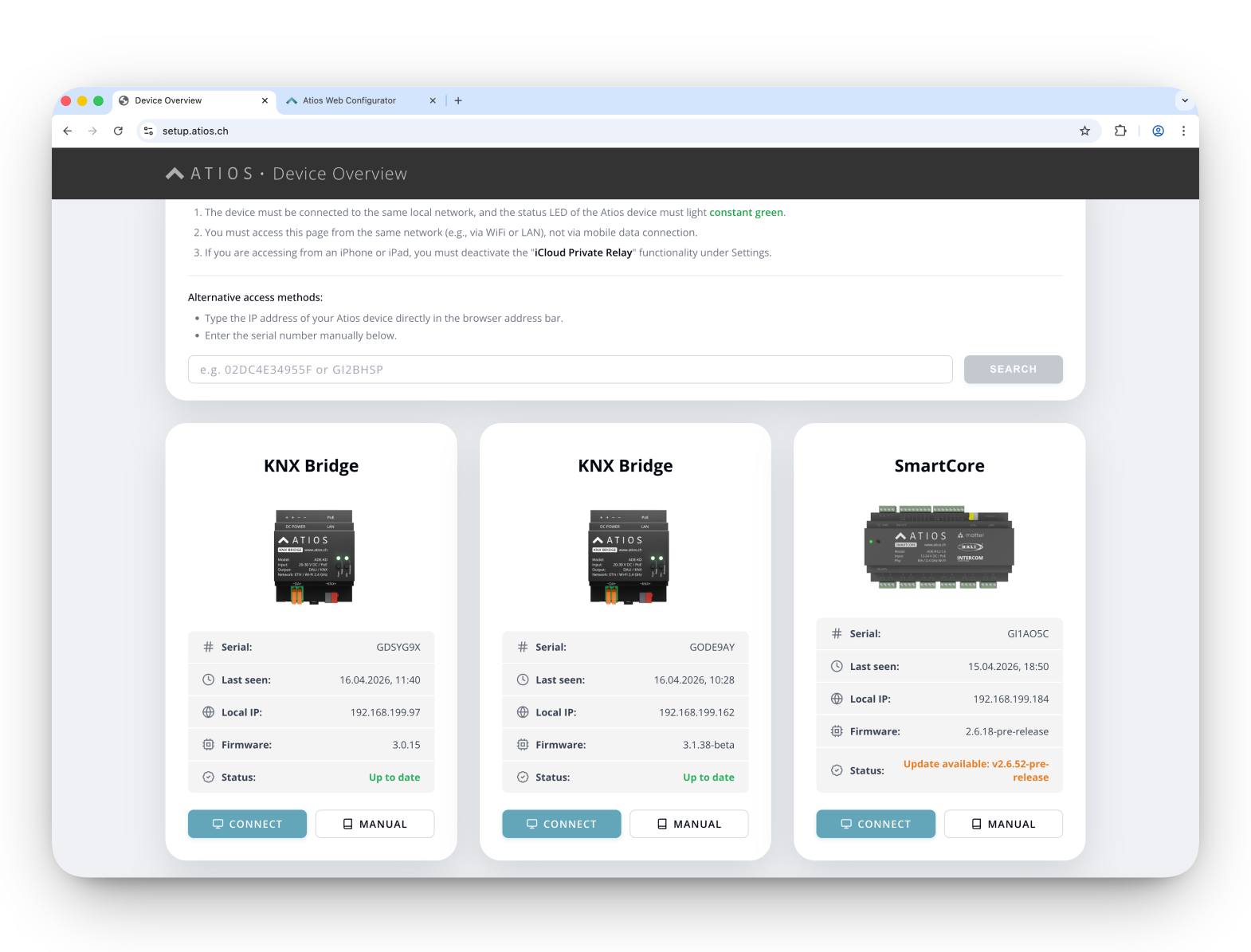
Go to setup.atios.ch, choose your SmartCore, and press Connect.
Configuration
The SmartCore handles different types of devices, both configured in the Accessory Manager and exposed to Matter together.
1. Inputs and outputs
The SmartCore makes traditional wired, non-smart devices smart. Wire keypads, contact or motion sensors, lights, blinds, valves or door locks to the 12 digital inputs and 12 potential-free relay outputs, then add each one in the Accessory Manager.
Out of the box
When the SmartCore arrives, every digital input is already mapped to the relay output of the same number (input 1 to relay 1, input 2 to relay 2, and so on). You can name the accessories and change these default mappings in the Accessory Manager at any time.
Wire the device. Connect switches, motion sensors and push buttons to the digital inputs, and lights, blinds, valves, or other loads to the relay outputs. See Wiring for diagrams.
Add the accessory. Open the Accessory Manager, pick the device type, and assign the matching inputs and outputs.
2. DALI
The SmartCore is a DALI-2 master with an integrated DALI power supply. Use the DALI bus for LED lighting (up to 64 lamps) and for DALI-2 sensors and switches (up to 64 instances). DALI devices are added in the Accessory Manager.
Connect the DALI bus. Wire your DALI lights and DALI-2 sensors to the DALI bus terminal. Enable the internal DALI power supply in System Settings, or disable it if an external DALI power supply is on the bus.
Address and group. Open the DALI Configurator, scan the bus, then address and group your lights and sensors.
Add the accessory. Open the Accessory Manager and add the DALI devices.
Exposing to Matter
Once you have added all accessories, they are exposed via Matter to your smart home app.
Enable Matter or HomeKit. In System Settings, enable either Matter or Apple HomeKit.
Pair. Scan the QR code in System Settings in the app of your choice (Apple Home, Google Home, Amazon Alexa, SmartThings, or Home Assistant). See the Matter Pairing Guide for platform-specific instructions.