
Quick Start
The WiserPort sits on the same network as your Feller Wiser WLAN Gateway. It reads your installation from the gateway over the Feller Wiser API and exposes your lights, blinds and thermostats to Matter.
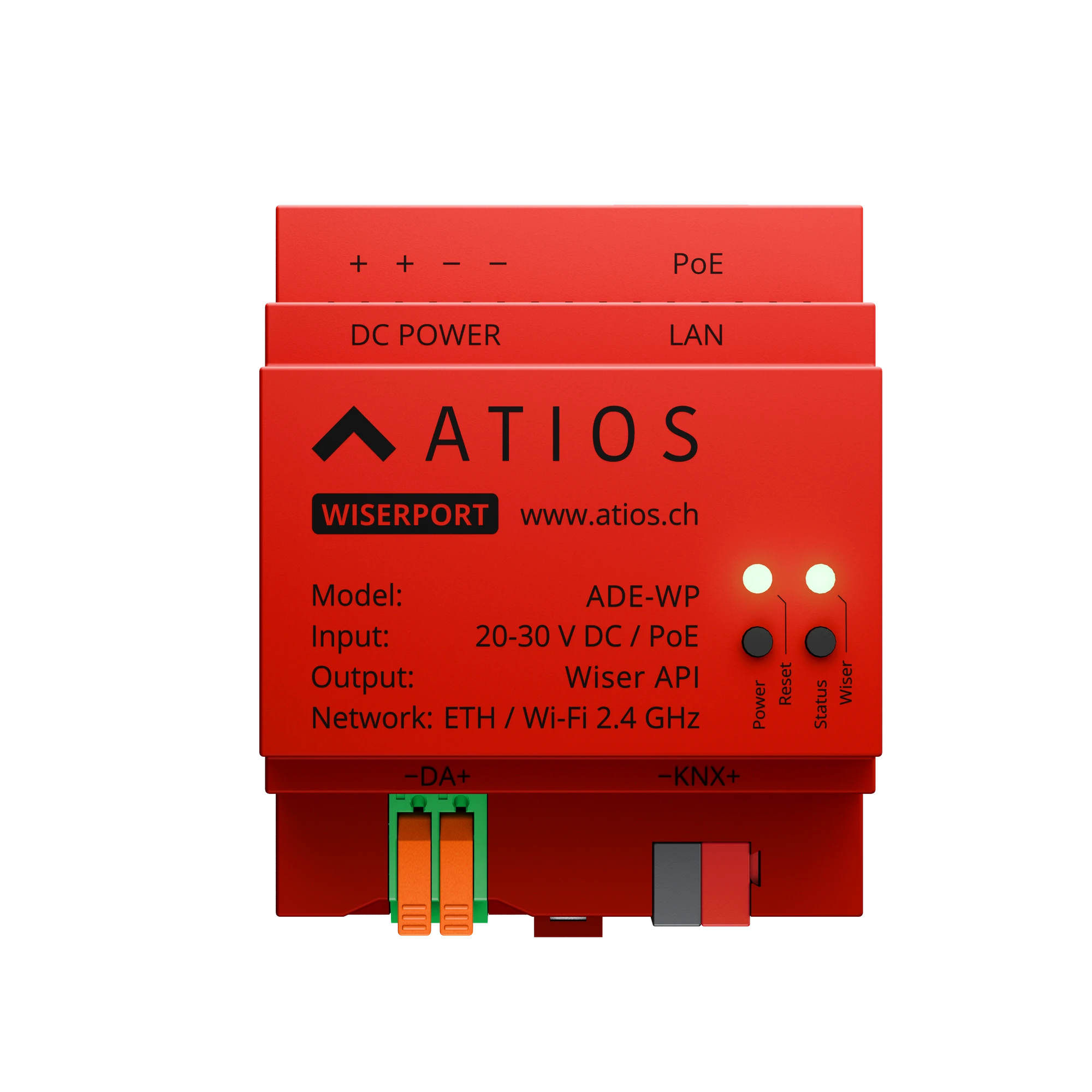
Key features
- Matter bridge for Feller Wiser devices, built on the open Feller Wiser API
- Requires a Feller Wiser WLAN Gateway on the same local network
- Up to 100 connected devices
- Power over Ethernet (PoE) or 20-30 V DC
- Ethernet or WiFi connectivity
- Matter-compatible: Apple Home, Google Home, Alexa, SmartThings, Home Assistant
What you need
- Atios WiserPort
- Feller Wiser WLAN Gateway, installed and working in the Feller Wiser Home app
- A network connection (Ethernet recommended) on the same local network as the Wiser Gateway
- A Matter controller for your ecosystem (for example an Apple TV, HomePod, Google Nest Hub, or Amazon Echo)
1. Connect to the network
Connect an Ethernet cable to the LAN port on the WiserPort. For a wireless setup, you can connect to Wi-Fi later through the Web Interface.
2. Power the device
Power the WiserPort over PoE (802.3af) through the LAN port, or with a 20-30 V DC supply on the DC POWER terminals. Use only one power source. The Power LED turns solid green once the device has an IP address.
3. Pair with the Wiser Gateway
Press the Wiser Button on the WiserPort. The WiserPort searches for your Feller Wiser WLAN Gateway and the Wiser Status LED blinks purple while it waits for confirmation. Press the button on your Feller Wiser WLAN Gateway to authorise the connection. The Wiser Status LED turns solid green when pairing succeeds.
For details, go to Wiser Gateway.
4. Scan the Matter QR code
- Open the Web Interface by connecting to your WiserPort here and go to System Settings
- The Matter card shows the QR code and the 11-digit pairing code (a new session starts automatically and is valid for 15 minutes)
- Open your smart home app and scan the QR code to add the WiserPort
TIP
The same Matter QR code and pairing code are also printed on a label on the WiserPort itself.
Your Feller Wiser lights, blinds, and thermostats are now available in the app of your choice. For app-specific steps, go to the Pairing Guide.