
Quick Start
The LumaPort connects to your Casambi network and exposes your Casambi lights to Matter. You add it to the network in the Casambi app, then add it to your smart home app with a Matter QR code.
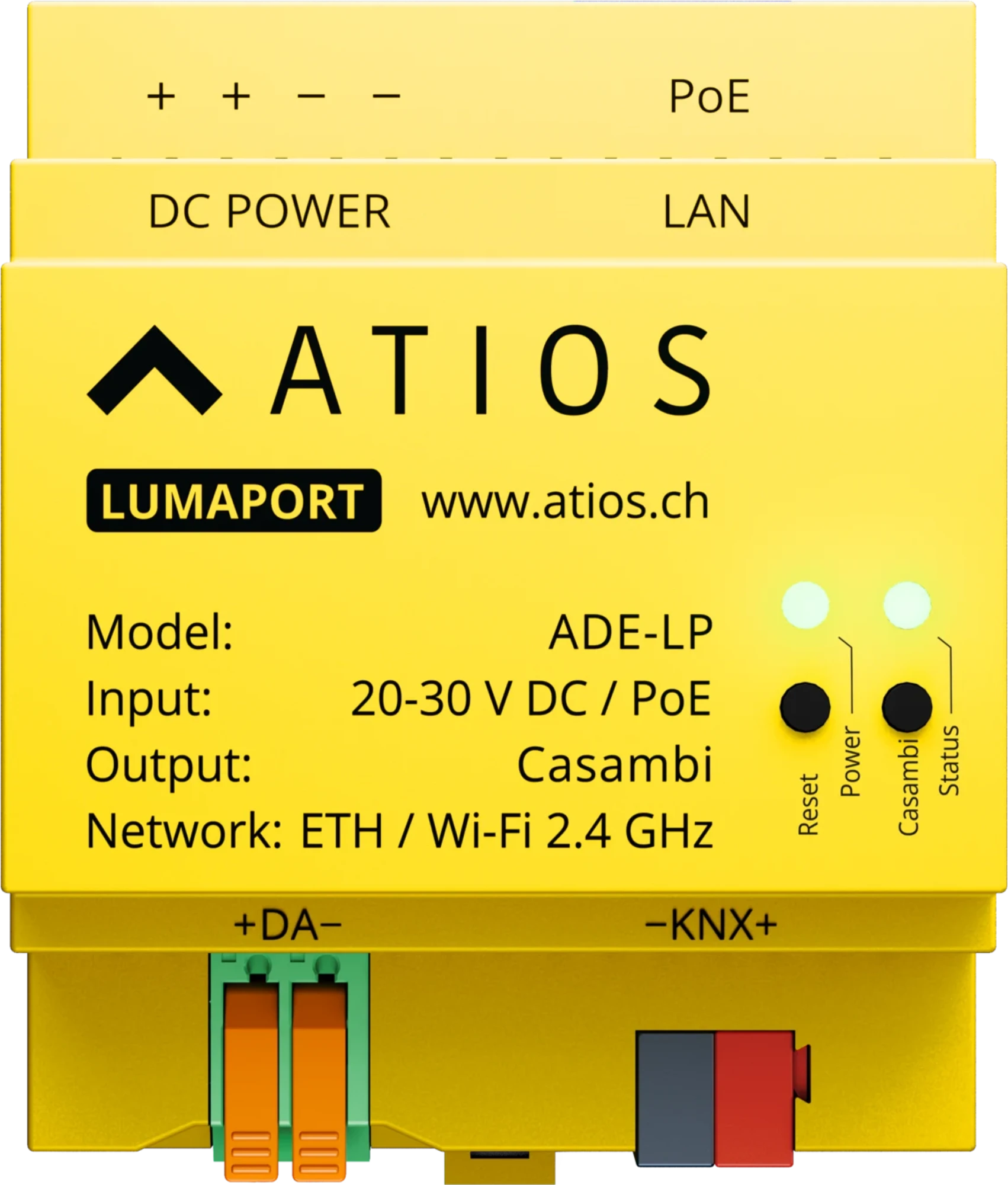
Key features
- Matter bridge for Casambi lighting networks
- Up to 250 Casambi fixtures and groups
- Power over Ethernet (PoE) or 20-30 V DC
- Ethernet or Wi-Fi (2.4 GHz) connectivity
- Matter-compatible: Apple Home, Google Home, Alexa, SmartThings, Home Assistant
What you need
- Atios LumaPort
- A Casambi network, set up and working in the Casambi app
- A network connection (Ethernet recommended)
- A Matter controller for your ecosystem (for example an Apple TV, HomePod, Google Nest Hub, or Amazon Echo)
1. Connect to the network
Connect an Ethernet cable to the LAN port on the LumaPort. For a wireless setup, you can connect to Wi-Fi later through the Web Interface.
2. Power the device
Power the LumaPort over PoE through the LAN port, or with a 20-30 V DC supply on the DC POWER terminals. Use only one power source.
3. Add the LumaPort to your Casambi network
Open the Casambi app and add the LumaPort to your Casambi network.
4. Scan the Matter QR code
- Open the Web Interface by connecting to your LumaPort here and go to System Settings
- The Matter card shows the QR code and the 11-digit pairing code (a new session starts automatically and is valid for 15 minutes)
- Open your smart home app and scan the QR code to add the LumaPort
Your Casambi lights are now available in the app of your choice.