
KNX Secure
KNX Secure is a prerequisite for Remote Access. KNX Secure protects your KNX installation against unauthorized access or manipulation. It uses two mechanisms:
KNX Data Secure secures the device itself from unauthorized configuration changes (Secure Commissioning), and optionally also lets you encrypt individual KNX telegrams on the TP bus.
KNX IP Secure encrypts IP traffic, the connection between the device and IP clients like ETS.
A typical installation uses KNX Secure to prevent unauthorized access via IP, which requires Data Secure to be activated. However, encrypting KNX telegrams on the bus adds significant complexity and is rarely used. As long as there is no unauthorized access to the green KNX bus cable, you can avoid this.
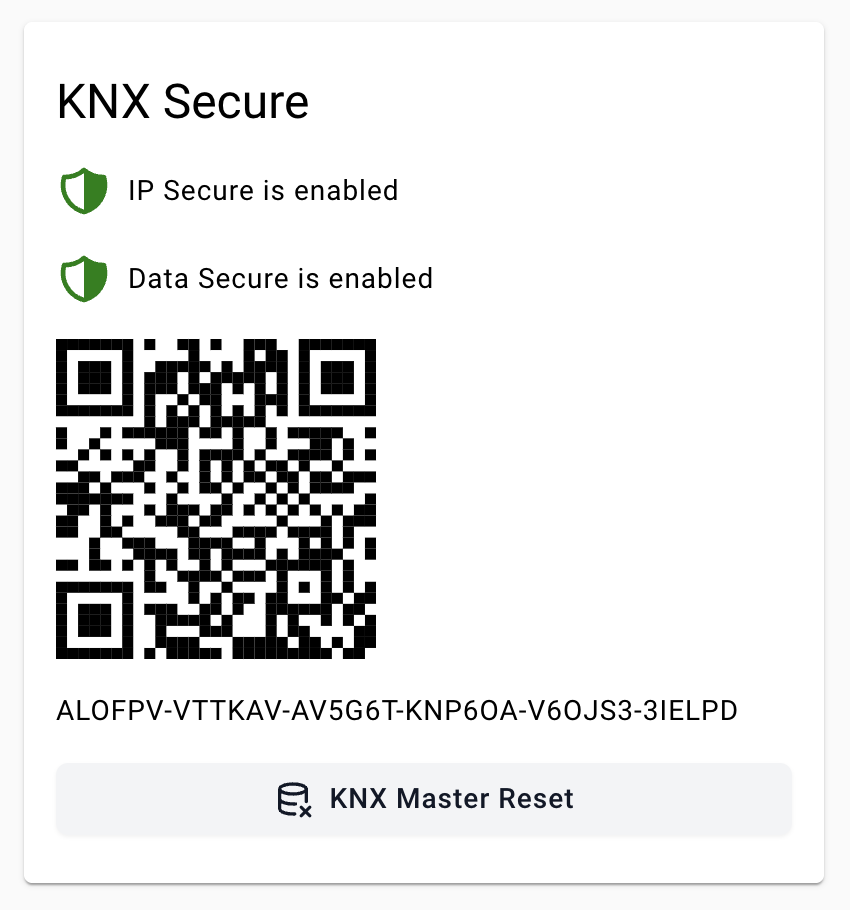
Factory Default Setup Key (FDSK)
Each KNX Secure device has a unique Factory Default Setup Key (FDSK). The FDSK of the device is displayed on the KNX settings page (e.g. ALODDQ-DW4XY3-W5LL77-LLRM7W-22OZE4-3FJBRH) and can also be found on the underside of the device.
Requirements
- ETS 6.0 or higher
Secure Commissioning
First device in the project
- In the ETS Online Catalogue, navigate to manufacturer Atios AG, select KNX Remote Access and drag it into your project topology.
- Set a project password when prompted.
- When ETS prompts you to add the FDSK, open the Web Interface.
- Navigate to KNX Settings → KNX Secure and copy the FDSK displayed below the QR code (e.g.
ALOG2M-E4XZO2-CCEC53-L4B6XA-TSKIG4-DFBXTF) and paste it into ETS. - Secure Commissioning and Secure Tunneling are enabled by default.
- Right-click the device in ETS, then select Download Individual Address followed by Download Application.
Already have the device in the ETS project
- In the ETS Online Catalogue, navigate to manufacturer Atios AG, select the Atios product and drag it into your project topology.
- Set a project password when prompted.
- When ETS prompts you to add the FDSK, click Later.
- Delete the device you just dragged in.
- Click on your existing device in the topology.
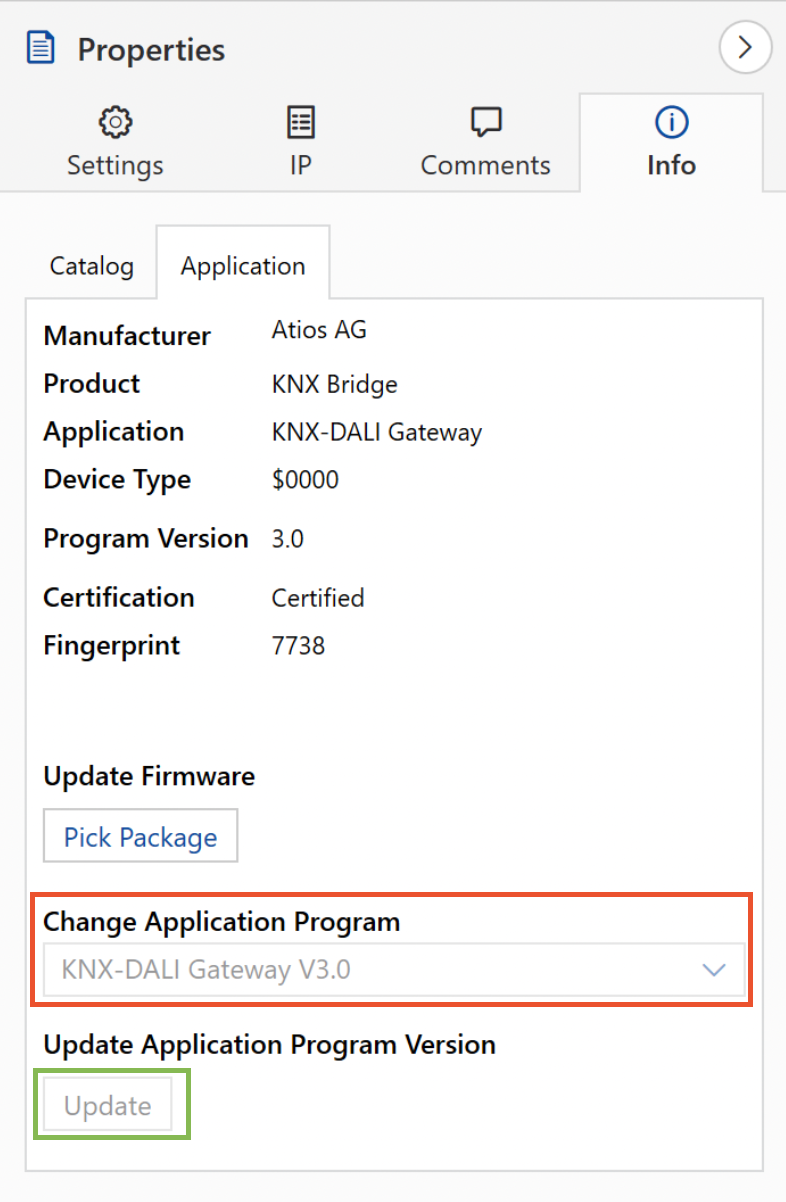
- Go to Properties → Info → Application and click Update at the bottom of the panel.
- Add the FDSK to the existing device via Properties → Settings → Add Device Certificate.
- Right-click the device in ETS and select Download Application.
INFO
You may need to set Secure Commissioning to active first to make the Add Device Certificate button visible.
When updating an existing device
Do not change the application program via the ComboBox. This will erase all your settings. If this happens by accident, click Undo immediately.
IP Secure Tunneling
IP Secure encrypts IP communication between the device and IP clients. It protects against anyone with network access who might try to read or inject IP telegrams.
How to connect clients to the device
- Expand the Tunnel Address node of the device in the Topology view.
- Select which tunnel the client should use.
- Drag and drop every group address the client should be able to receive or send.
- Export the keyring file via Properties → Settings → Export Interface Information.
- Import the keyring file into the client.
Why this is needed: the keyring file contains the authentication code, the keys for every group address dragged into the tunnel, and the user ID needed to open the encrypted IP connection between the device and the client.
Secured Group Addresses (optional)
By default, ETS automatically enables security on group addresses when all connected devices have Secure Commissioning enabled. You can force ETS to enable or disable security for each group address.
Secured group addresses are only necessary if someone could gain physical access to your KNX bus. For typical residential setups, you don't need to secure individual group addresses, since this adds significant complexity.
Updating the keyring after secure changes
Any change to the secure configuration in ETS requires:
- Re-exporting the keyring from ETS.
- Re-importing it into the device's Web Interface, and into every other connected third-party system that uses KNX Secure.