
KNX-DALI Gateway
With the KNX-DALI Gateway, you can control up to 64 DALI lights organized into up to 16 groups (DT0-DT8).
The addressing and configuration of DALI lights is done in the Web Interface.
Getting Started
Before you begin, ensure that at least one DALI light is connected to the DALI Bus terminal on your Atios KNX Bridge and that the DALI Bus is powered. You have two options:
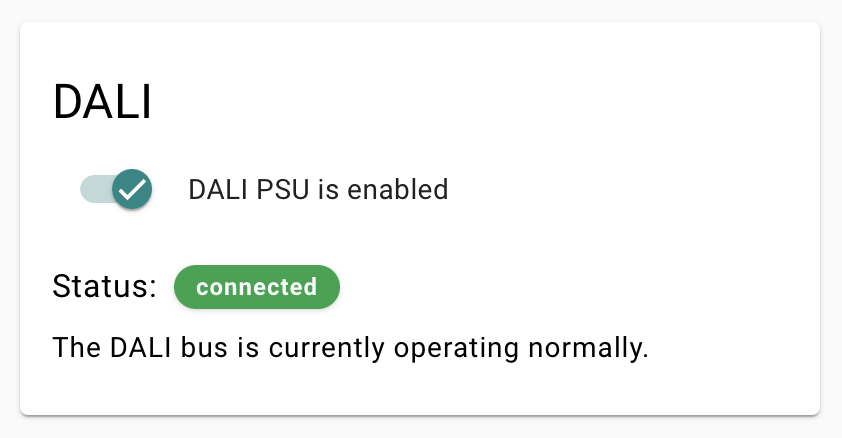
- Internal Power Supply: Activate the DALI PSU in System Settings → DALI.
- External DALI Power Supply: If using an external power source, make sure to deactivate the internal one.
The DALI Configurator
- Go to the Web Interface (via setup.atios.ch or enter the IP address of your KNX Bridge).
- Click DALI Wizard and choose how to discover your lights, then click Scan:
- New DALI Installation: resets all DALI devices on the bus and auto-assigns fresh addresses. Use this for a brand-new installation; it clears any existing DALI addressing.
- Scan for DALI Devices: reads the existing DALI addresses and searches for unaddressed devices. Use this when your devices are already addressed, or when adding lights to an existing setup.
- The interface populates with DALI devices, which can be toggled on/off for testing.
- Use the DALI button to check if all lights respond correctly.
- Assign names and adjust fading time settings per light.
- Click Write after making changes to save settings.
- To control multiple DALI lights together without delays, group them into DALI groups (up to 16 supported).
- Click Save Project to store the list of DALI devices and settings locally on the KNX Bridge.
Finalizing the Setup in ETS
Once your DALI lights and groups are configured, integrate them into your KNX system:
INFO
If the Atios KNX Bridge is already in your project topology, skip steps 1 and 2.
- Download the Atios product database and add it to your ETS topology.
- Add the Atios KNX Bridge to your KNX TP line.
- Navigate to the tab Parameters and choose the Device- and Colortype for each DALI light (adress or group level).
- Assign KNX group addresses to DALI devices and groups via drag and drop.
- Download only the physical address of the Atios KNX Bridge first (activate Programming Mode with a quick double press of the Reset Button on the device, or via the Web Interface).
- Download the full application program in a second step.
Matter Integration for DALI Lights
To control DALI lights via Matter, add them to the Accessory Manager as KNX lights, just like any other device.