
Quick Start
The KNX-DALI Gateway is installed in your electrical cabinet next to your KNX actuators. It binds DALI luminaires to your KNX installation. You commission the DALI lights in the Web Interface, then assign KNX group addresses to them in ETS.
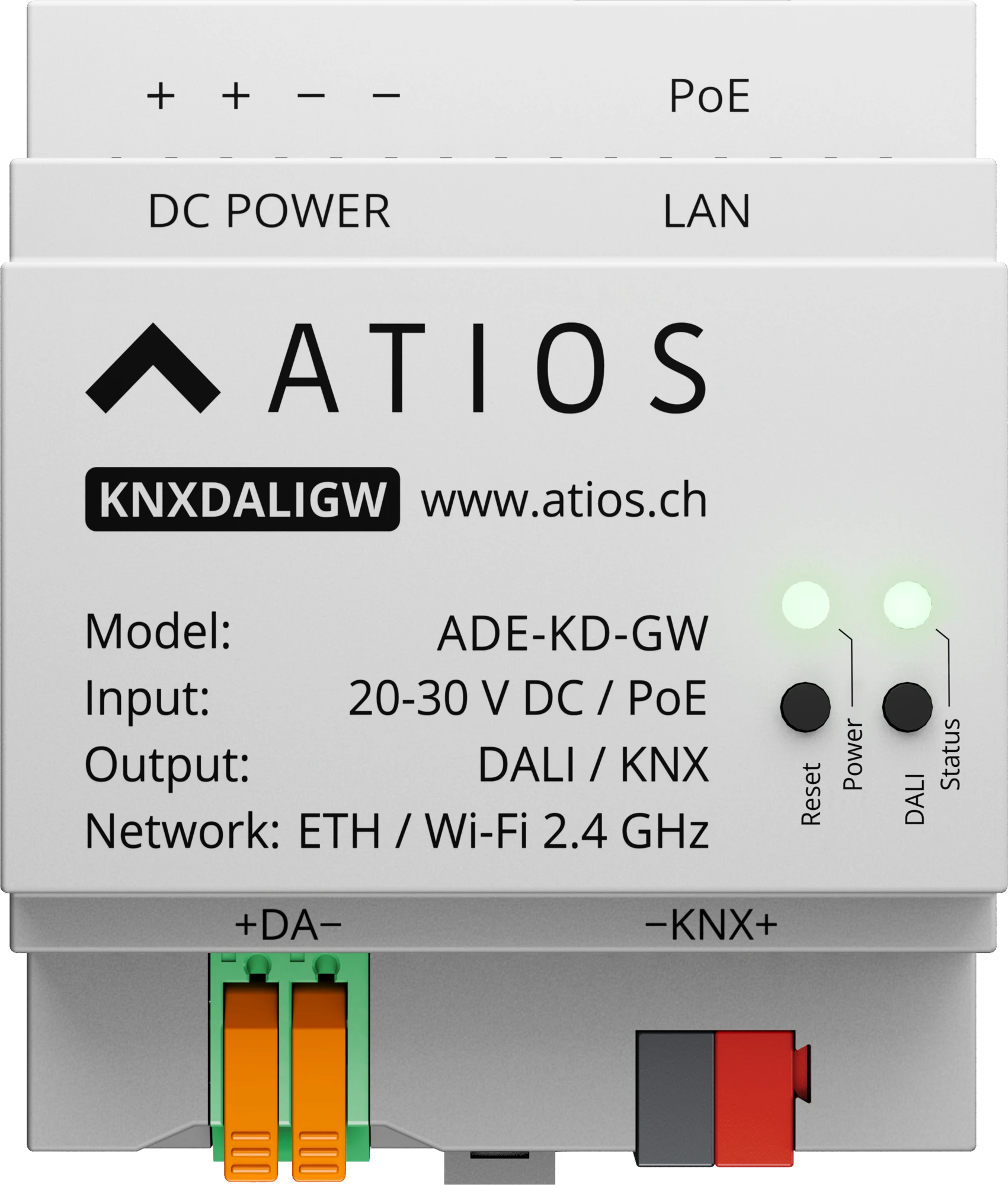
Key features
- DALI-2 certified
- KNX Secure supported
- Up to 64 DALI addresses and 16 groups
- DT8 colour control: tunable white and RGB/HSV
- Integrated 250 mA DALI power supply
- DALI commissioning and addressing in the Web Interface
- Power over Ethernet (PoE 802.3af) or 20-30 V DC
What you need
- Atios KNX-DALI Gateway
- ETS for programming
- DALI lights connected to the DALI bus
- A network connection (Ethernet recommended) to reach the Web Interface
1. Mount and wire the device
Mount the gateway on the DIN rail in your electrical cabinet. Connect the KNX TP bus to the KNX terminal (observe polarity) and wire your DALI lights to the DALI terminal. For full wiring details, go to Installation.
2. Power the device
Power the gateway over PoE through the LAN port, or with a 20-30 V DC supply on the DC POWER terminals. Use only one power source. The Power LED turns solid green once the device has an IP address.
3. Power the DALI bus
Enable the internal 250 mA DALI power supply in System Settings, or connect an external DALI supply and leave the internal one disabled. Do not run both at once.
4. Commission your DALI lights
Open the Web Interface after connecting to the device at setup.atios.ch. Run the DALI Wizard to discover the connected lights, name them, set fading times, and organise them into groups. Click Save Project to store the configuration on the device.
For details, go to the DALI Configurator.
5. Bind the lights in ETS
Download the Atios product database, add the KNX-DALI Gateway to your KNX TP line, and assign KNX group addresses to your DALI lights and groups via drag and drop. Download the physical address first, then the full application program.
Your DALI lights are now controlled from your KNX installation. For details, go to Finalising the Setup in ETS.