
Occupancy Sensor
Setup
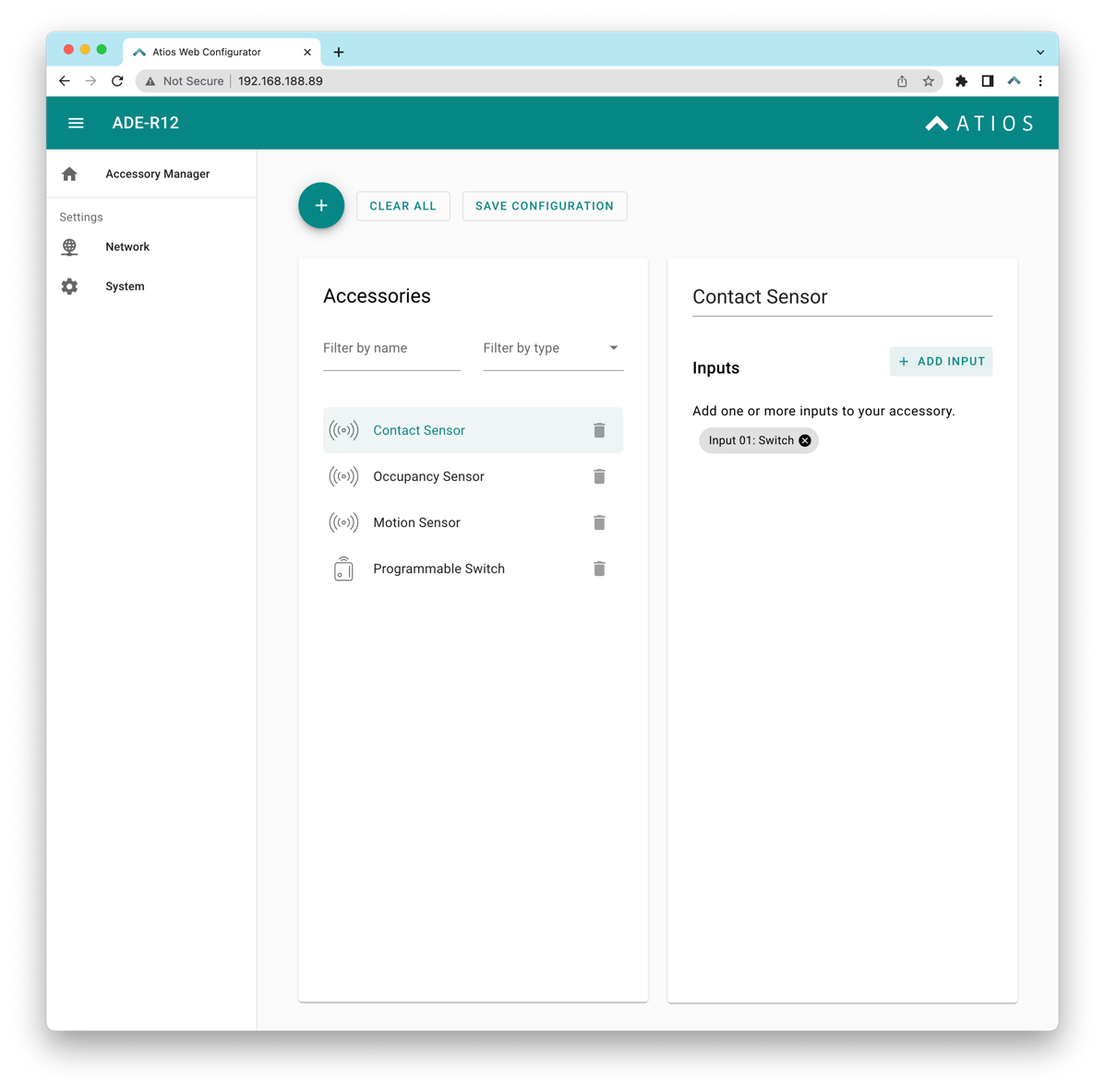
- Open the Web Interface by connecting to your SmartCore here and navigate to Accessory Manager.
- Click the (+) button to add a new accessory.
- Select Occupancy Sensor as the accessory type.
- Assign the input where your occupancy sensor is wired (for example, Input 1).
- Configure any input settings (Input Inverted to reverse active/inactive logic, Input Stateful for always-on state detection).
- Click Save.
Your occupancy sensor will now report occupancy status in the Home App and can be used in automations.