
System Settings
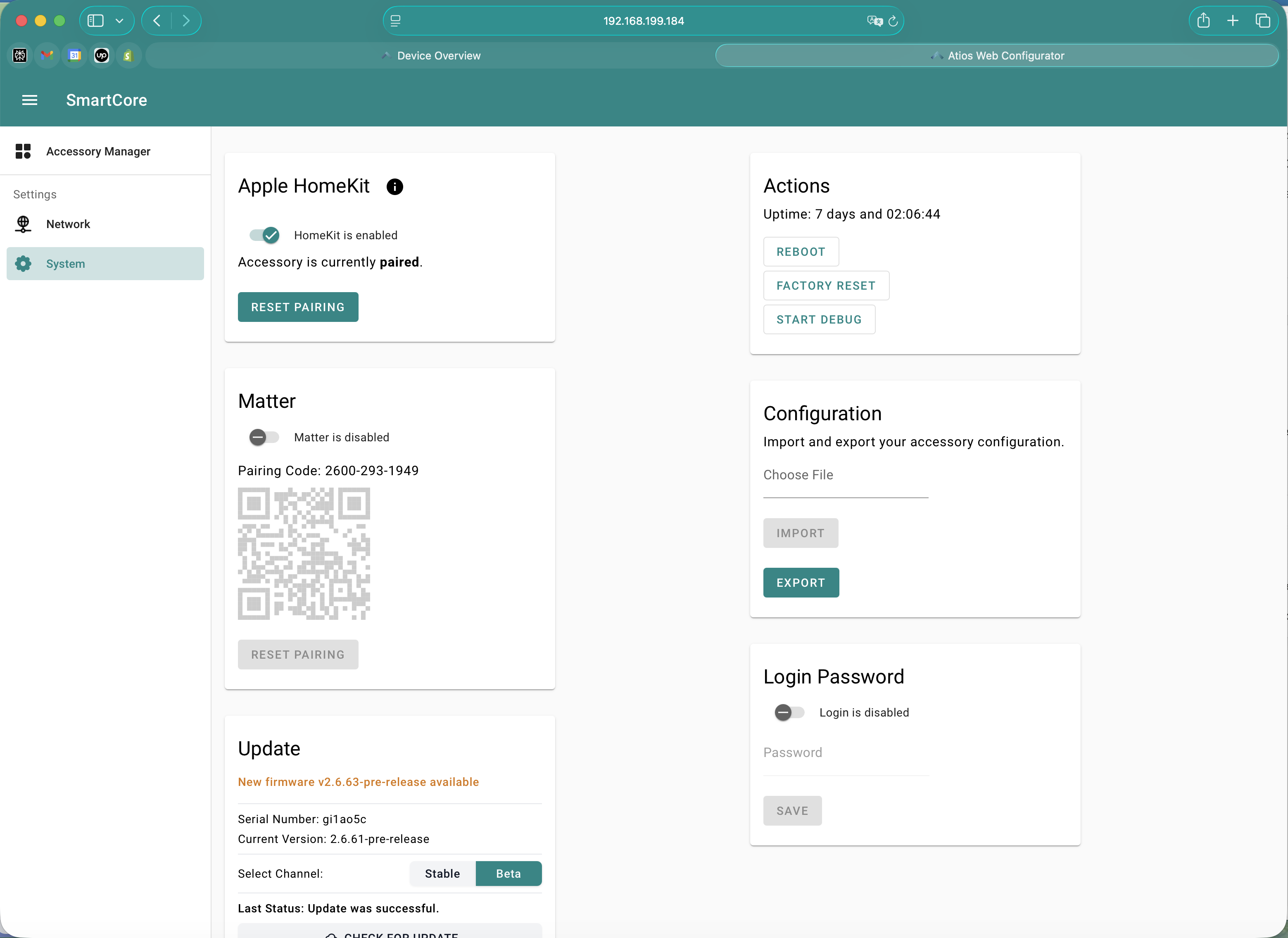
Open the Web Interface by connecting to your SmartCore here and navigate to Settings > System.
DALI
The DALI card shows two toggles and the current bus status.
DALI Power Supply
Toggle the internal DALI power supply on or off.
Specifications:
- Output: 250mA at 16V
- Use case: Powers DALI devices when no external power supply is available
- Alternative: Disable internal supply and use an external DALI power supply for more power
WARNING
Do not enable both internal and external DALI power supplies simultaneously. This can damage the DALI bus hardware.
DALI IP Interface
Enable this to expose the SmartCore on your local network as a Lunatone DALI IoT Device. Lunatone's DALI Cockpit (Windows) can then connect to the SmartCore for advanced DALI-2 commissioning, bus monitoring, and parameter access. See Lunatone DALI Cockpit for the full workflow.
The toggle is off by default. Day-to-day configuration stays in the SmartCore Web Interface.
Status
The bus status indicator shows whether the DALI bus is currently operating normally. If the indicator reports a fault, check the bus wiring and the power supply.
HomeKit and Matter
HomeKit
Enable HomeKit to pair SmartCore only with Apple Home.
- When enabled, a HomeKit pairing code appears in System Settings
- Scan the code with Apple Home to pair
- Reboot required after changing
Matter
Enable Matter to pair SmartCore with Apple Home, Google Home, Amazon Alexa, Samsung SmartThings and/or Home Assistant.
- When enabled, a Matter pairing QR code appears in System Settings
- Scan the code with your preferred Matter app to pair
- Reboot required after changing
WARNING
HomeKit and Matter cannot run simultaneously. You must choose one protocol. To switch protocols, disable the active one, reboot, then enable the new one. We recommend you to use Matter.
Update
| Field | Description |
|---|---|
| Serial Number | The unique serial of this SmartCore. |
| Current Version | The firmware version currently running on the device. |
| Select Channel | Toggle between Stable and Beta firmware streams. |
Update process:
- In System Settings, scroll to Update.
- Select the channel you want to follow: Stable (default, recommended) or Beta (early access to new features, may be less stable).
- Click CHECK FOR UPDATE. If a newer version is available on the selected channel, the SmartCore offers to download and install it.
- The SmartCore reboots automatically during the update.
- Do not unplug the device during the update process.
Actions
The Actions card shows the current Uptime of the SmartCore and the three action buttons described below.
Reboot
Reboot SmartCore to apply changes or troubleshoot issues.
- Navigate to Actions
- Click Reboot
- SmartCore will restart and reconnect to your network
Via Button:
- Press and hold the reset button for 2 seconds until the LED is blinking blue
- Release button and SmartCore will reboot
INFO
Rebooting does not erase your configuration.
Factory Reset
Factory Reset returns SmartCore to its original state, erasing all configuration.
WARNING
Factory Reset deletes all settings, pairings, and device configurations. This cannot be undone. Back up your configuration first if you need to preserve it.
Via Web Interface:
- Navigate to Actions
- Click Factory Reset
- Confirm
Via Button:
- Press and hold the reset button for 10 seconds until the LED is blinking purple
- Once you release the button SmartCore will reset to factory settings
Debug Mode
Click START DEBUG in the Actions card to begin capturing detailed system logs. Click again to stop. Use the captured logs when contacting support for help with issues.
Login Password
Set or change the password for accessing the Web Interface.
- Navigate to Login Password
- Enter a new password and confirm
- Click Save
- The new password will be required the next time you access the Web Interface
TIP
Store your password in a secure location. If you forget it, you will need to perform a factory reset to regain access.
Import Configuration
Restore a previously saved configuration from a file.
- Navigate to Import/Export
- Click Choose File and select a configuration file (.json format)
- Click Import
- SmartCore will load the configuration and reboot
- Your settings, devices, and pairings will be restored
Export Configuration
Back up your current configuration to a file.
- Navigate to Import/Export
- Click Export Configuration